
Create and activate account
After admission there is a delay of up to 24 hours before an account is created. Accounts are usually created at 12:00 (noon) and should be ready to activate the day after admission.
A) Activate user account
-
Your user account is prepared after admission to a course or programme. Authentication is mandatory to create the account.
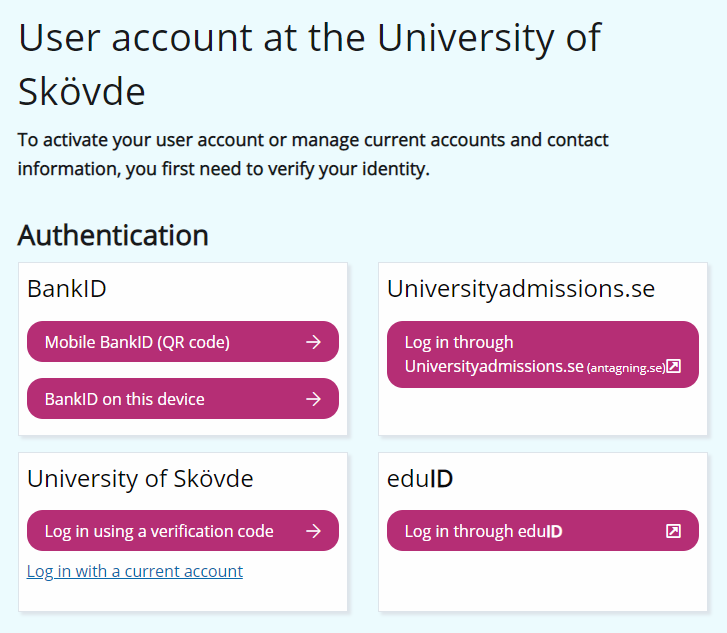
Go to https://konto.his.se
Authenticate through either BankID, Universityadmissions.se, eduID, or verification code. If you do not have a Swedish electronic identification, verify your student account through universityadmissions or eduID.
eduID
If you are an EU citizen without a Swedish personal identity number, you could use eIDAS to verify your identity and obtain an eduID.
-
In this step you should see the user name of your prepared account. Click on Begin activation.

Cannot see your user account? If more than 24 hours have passed since your admission, contact helpdesk@his.se.
We recommend that you verify your contact information, which makes it easier for us to assist should any issues arise. If you do not receive a text message to your international phone number, please click the checkbox "Skip verifying your contact information" before continuing.

- Enter the e-mail address you wish to verify. Click on Send e-mail for verification
- Enter the code sent to your e-mail, then click on the arrow button
- Repeat the process for your phone number. Enter your number, click Send text message verification, enter the code and click on the arrow
- If you do not receive a text message to your international phone number, please click the checkbox "Skip verifying your contact information" before continuing
- Optional: Check "Update e-mail and phone number in Ladok as well" to provide e.g. the Student Affairs Office with your updated contact information
- Click Continue
Your user account will now synchronize with the University's different systems. Wait a few minutes until it is done.

Should you return to the start page, the button "Continue activation" will appear under the account name when the processing is complete.

-
You should now be able to click the button Continue activation (regardless if you are on the activation page or start page).


-
You must accept the terms of use for the University's computers to continue the activation.
Read the terms and then click Next, choose password.
-

The final step is to choose a secure password according to the defined requirements.
Follow the requirements showed on the page.
Click Set password.
Click Finish.
-
You should now be able to use your user account to log in e.g. in Studentportalen or the webmail.
In most cases you should only enter the user name, for example a23abcde and not the entire e-mail address a23abcde@student.his.se when logging in.
Should you have forgotten your user name you can find it by logging in to konto.his.se (through e.g. universityadmissions.se or eduID). If you verified an e-mail address while activating the account you should also have received a confirmation where the user name is displayed.
One exception is when connecting to the wireless network eduroam, where you will need to enter username@his.se (for example a23abcde@his.se).
On HelpIT (ComAround) there are multiple guides for how to connect to eduroam depending on which kind of device you are using.
B) Register for courses and programmes
-
When you have activated your user account according to A) you may register for your courses in Studentportalen. See information about registration dates.
Click "Log in" to the upper right. There is also a login button on the start page.

-
Expand the plus icon next to "My studies", click on "Course registration".

Click "Add" next to the courses you want to register for.

To complete the registration, click on "Register". If the courses are offered as part of a programme you will also be registered on that programme.

-
When you are registered you may click on "My studies" in the menu for an overview of your results, programmes and courses.

C) Log in to the learning platform Canvas
-
When you have registered for your courses according to B) you may log in to the learning platform Canvas to find course material, provided that this has been published by the course coordinator. Course pages are usually published in conjunction with when the course starts.
Please see the introduction and guides to using Canvas.

Click on "Log in to Canvas with your University account" and enter your user account credentials.
IT Helpdesk contact details
Email: helpdesk@his.se
Telephone: 0500-44 88 00
Visit: Building E, 2nd floor (at the Student Affairs Office)
Regular Opening Hours
Reception
- Monday–Friday 10:00–11:30
Telephone
- Monday–Wednesday 08:00–16:00
- Thursday 08:00–08:30, 09:30–16:00
- Friday 08:00–15:00
Monitored on weekdays (excluding public holidays) 08:00–16:00
Deviating Opening Hours
Reception
- 23 December-10 January: Closed
Telephone
- 23 December-10 January: 08:00–12:00